
Gaige AI Account Summary Agent
Modified on: Wed, 8 Apr, 2026 at 4:45 PM
TABLE OF CONTENTS
- Introduction
- How it works
- Setting a filter
- Privacy
- How to get started
- Language interaction
- Important to keep in mind
- API Support
Introduction
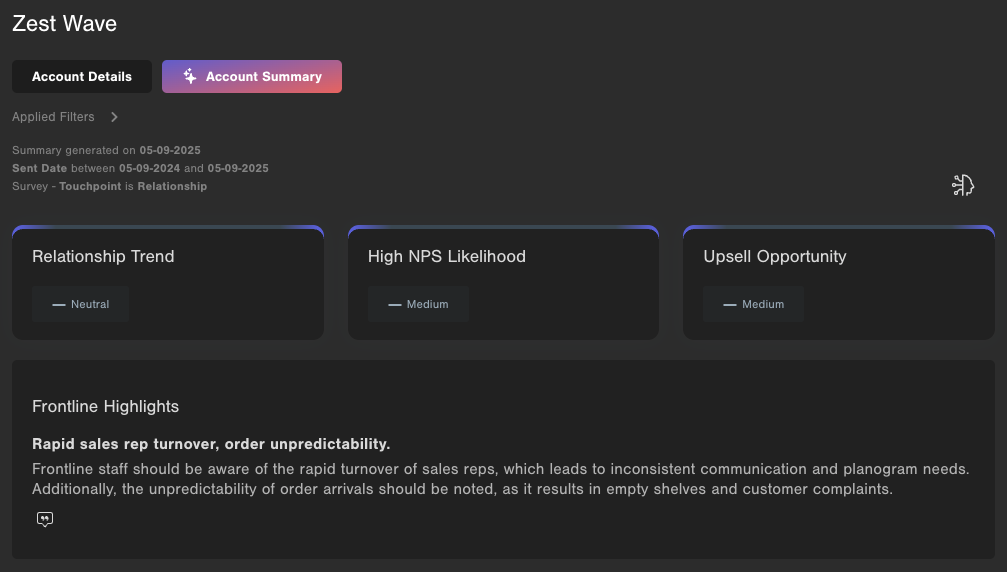
The Gaige AI Account Summary Agent leverages Gaige AI technology to summarize your overall relationship with a given Account, helping you gain a 360 degree view of the feedback provided by the account while highlighting key and important areas to be aware of. It's perfect for front line staff who have limited time to read through the entire account history or top level managers looking for quick insights into your organization's relationship with a specific or strategic account.
How it works
The Agent will analyze the survey responses, including drivers and comments, and will construct a brief, summarized report of its findings. The Summary will aim to cover points related to the “core questions” it's being asked to answer about the Account. The summaries can be generated on the Account Page in CustomerGauge.
To generate a summary, navigate to the Account Page for the account, toggle to the Account Summary tab, define your desired date filter and data filter settings, and click "Generate Summary".
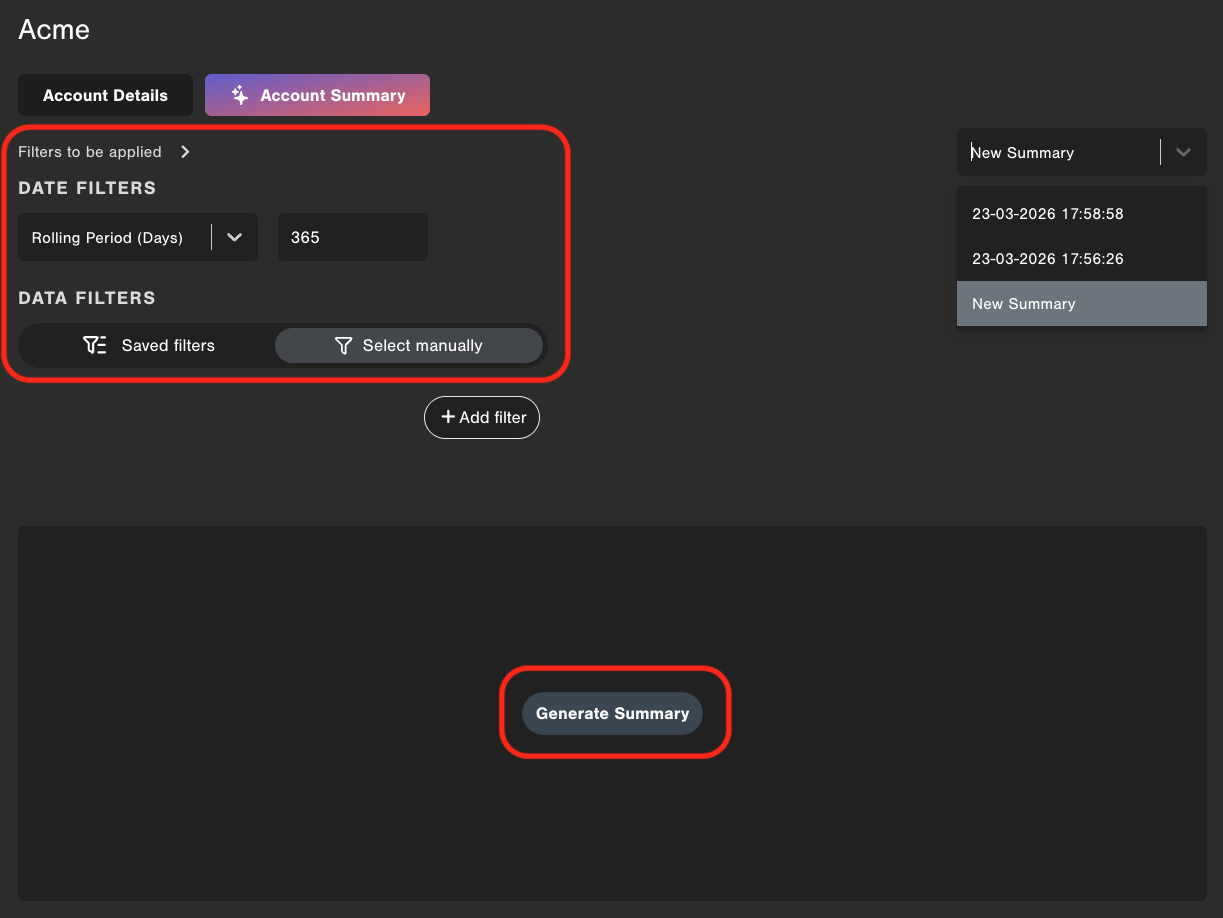
This button will appear if you've never created a summary for that account previously. Summaries make take up to 30-60 seconds to process and generate.
If you have previously generated a summary for an account, the most-recently generated summary will load by default when visiting this tab.
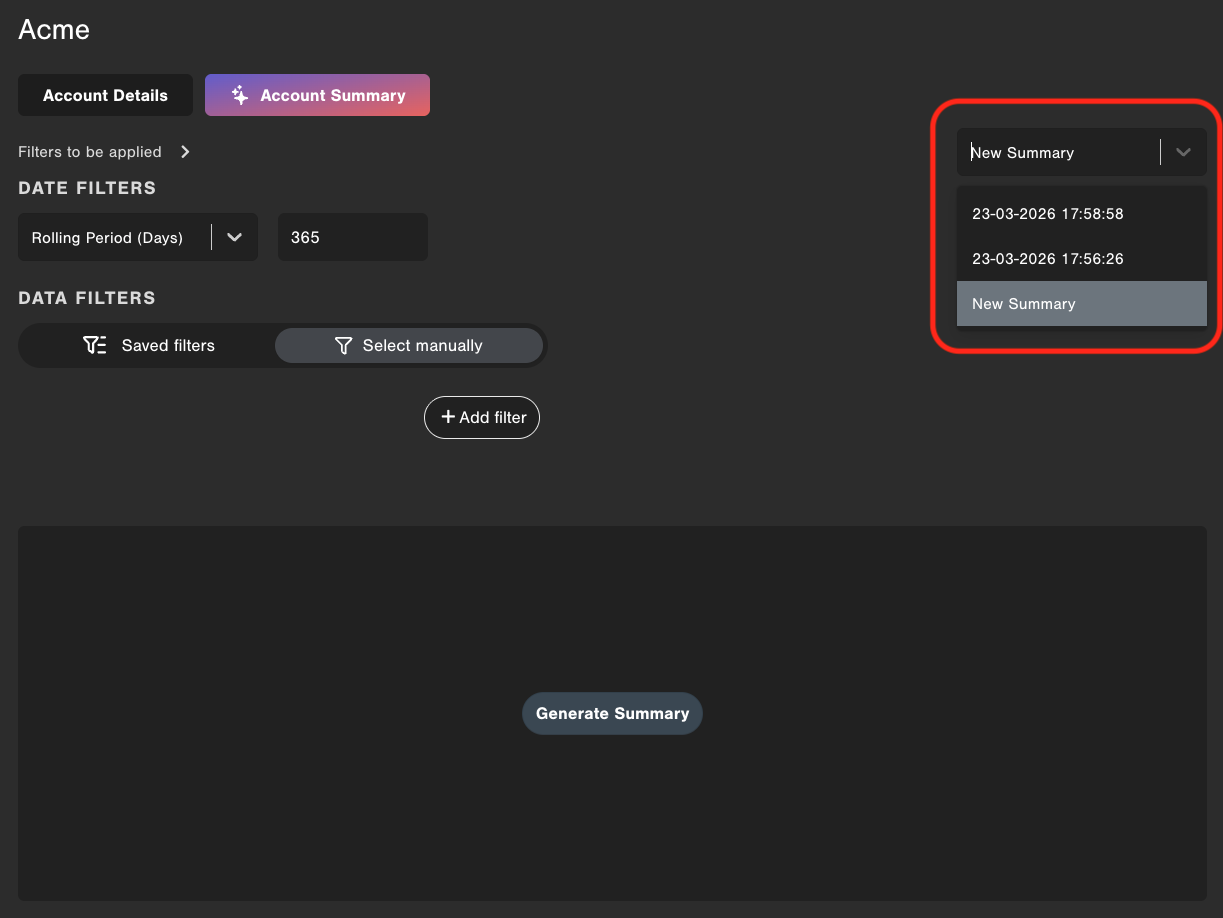
If you'd like to generate a new summary for an account that already has a Summary generated, or access any additional previous Summaries that may have already been created, click the dropdown menu on the upper-right:
From there, you can either toggle to a previously-generated Summary, or click the "New Summary" option to create a new one, following the same steps as above as when creating a Summary for the first time:
Setting a filter
System Admins can specify which filter(s) should be applied when generating the summaries.
Privacy
The Privacy settings for the Gaige AI Account Summary Agent, including any data that gets redacted such as personal identifiable information (PII) and business identifiable information (BII) are controlled by your System Admin.
How to get started
- Contact your account manager and request the Gaige AI Account Summary Agent to be turned on.
Language interaction
The Gaige AI Account Summary Agent can work with survey feedback collected in any language. The summary will be presented to the User in the language indicated in the User's "My Profile" language preference settings.
Additional considerations
- Summaries are User-specific and cannot currently be shared directly within the platform with another User.
- Due to the nature of AI, different Users may see slightly different summarized results when generating summaries for the same account. Users with identical data access permissions see equivalent summaries when the source data used to generate the summary was the exact same set of source data for both Users/both Summaries.
- Summaries obey all data access restrictions a User may have, and only uses survey data the User would have permission to access when generating the Account Summary.
- Up to the 50 most recent responses of an Account will be used to create the Summary
- In the event that more than 50 survey responses exist in the time frame for the given account and filter(s), the most recent 50 responses will be considered when generating the summary
- Always verify any findings generated by Gaige AI Agents
API Support
The Account Summaries are not available via API.
Did you find it helpful? Yes No
Send feedback