
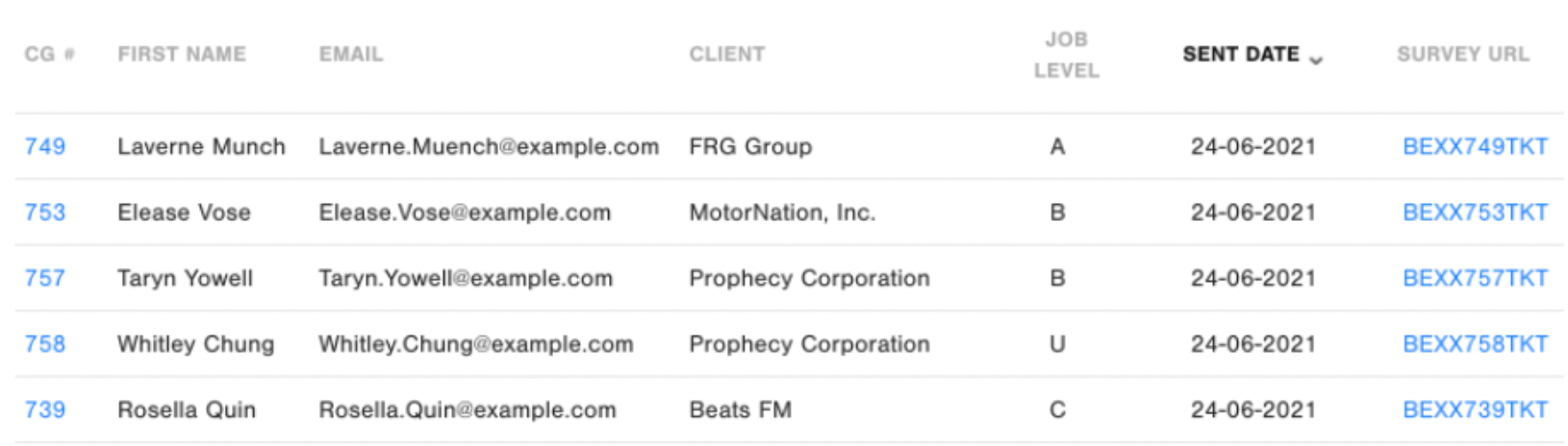
The Non Response widget allows you to view a list of survey recipients who have not yet responded to the survey, and it will include the contact's unique survey link.
You can be made aware of non-respondents by receiving non-response alerts in your inbox.
Your system admin can ensure that you as a user have access to this reporting widget and the unique survey links, and that the email alerts are set up for you.
Directions
Draft an email to send to your customers in which to include their personal survey link, or get a template from your program champion. It can be a very brief email referencing the invitation the customer has already received, and requesting them to fill out the survey including a few pointers on its importance.
Open up the report that contains the Non-Response widget, and use the filters if you want to get to a specific account. Date filters should be used to ensure the send date is >7 days ago, so that you can be sure that your customer has already received both their primary and reminder invitations.
- The Non-Response widget shows the active survey URL. This link can be copied into an email and sent to your customer. Please note that you'd need to:
- Right-click and copy the link instead of opening it in the browser, in order not to skew the survey open rates
- Be extra careful that you share the correct link with the correct contact, because the feedback will be linked to their name and company info
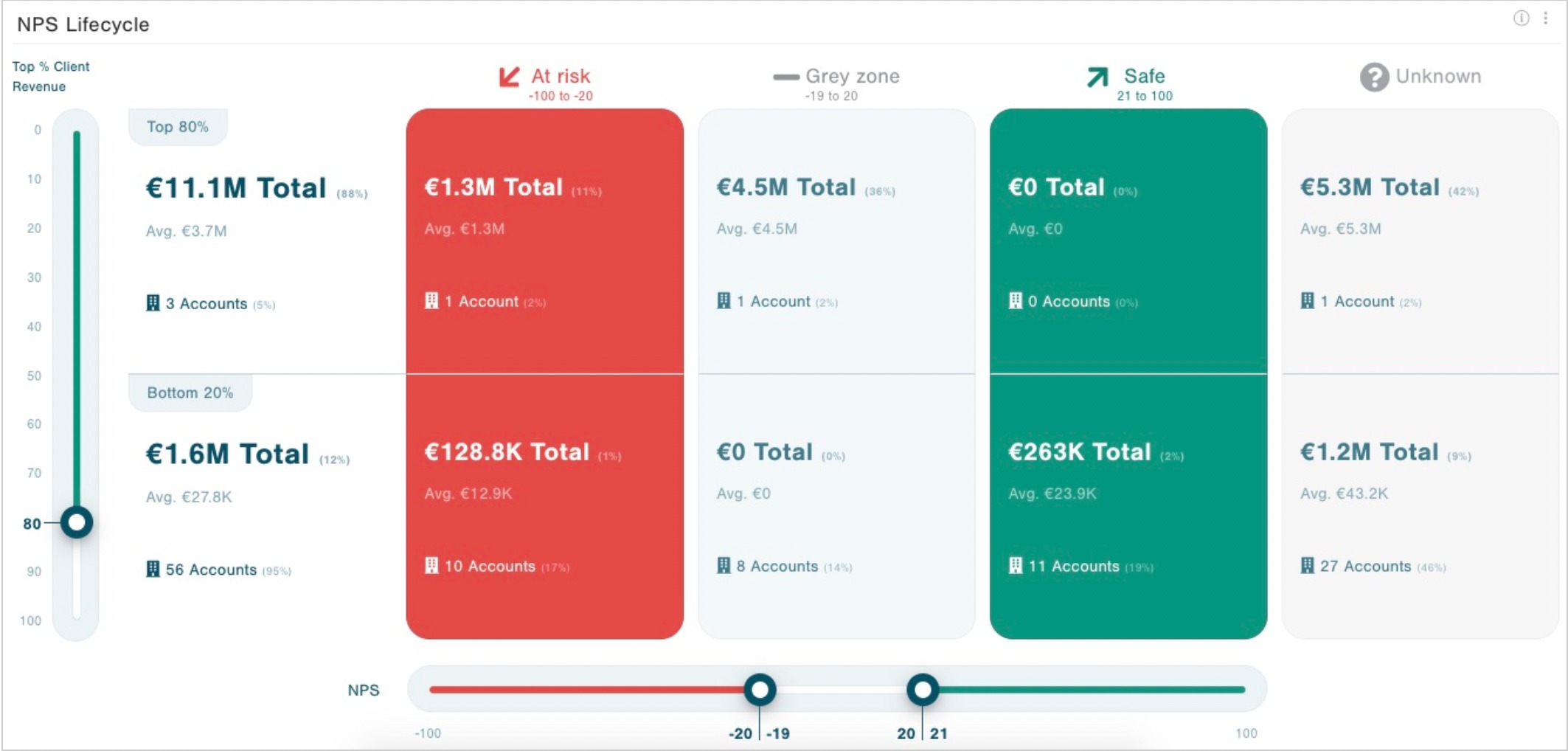
If you do not have time to do a personalized survey invitation for all your non-responding contacts, try and prioritize the higher spending accounts with the help of the Customer Lifecycle Widget.
Once the customer fills out the survey, ensure a good close the loop process - this will decrease chances of having to repeat the above steps for this customer in the next survey round!