
This recipe provides procedural steps to create a workflow rule for Bounced Emails. This way, you will receive alerts when a survey invitation bounce which in turn allows you to keep on top of data quality.
Directions
Go to Settings > Workflow > New Bounce
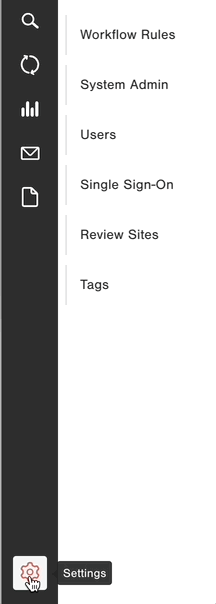
Hit the "+ New Rule" button:

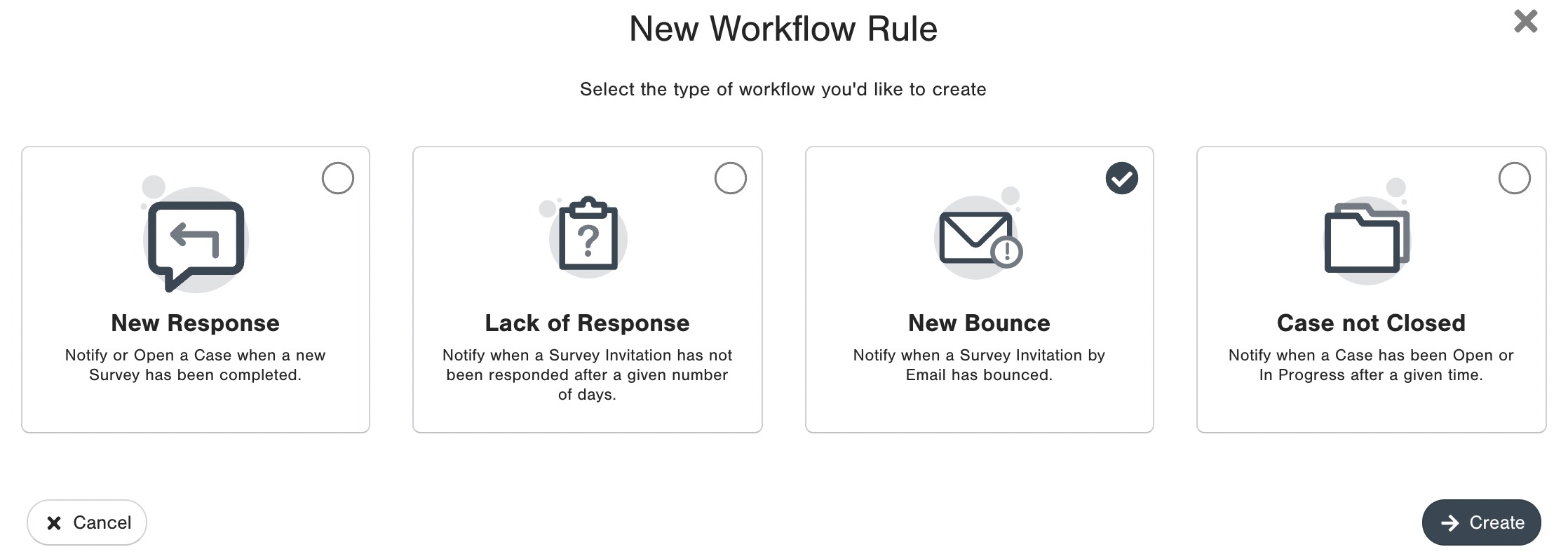
Choose the type of workflow rule you would like to setup (New Bounce)
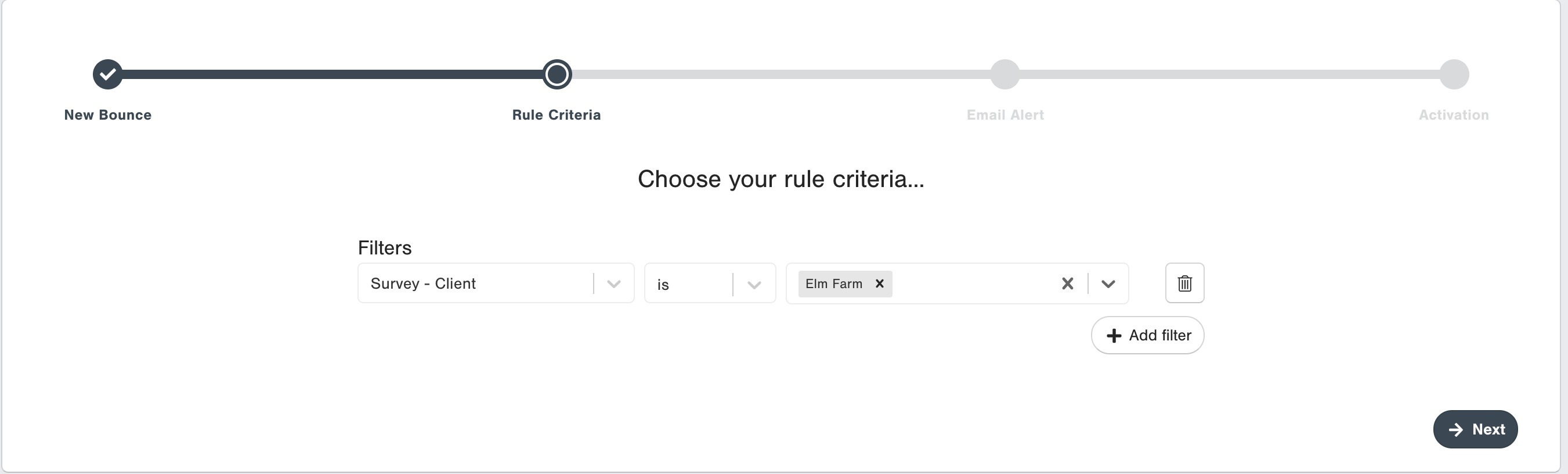
Set the Filters you'd like to apply - you can also opt to not have a filter to receive an alert for every new bounce.
Add the email address(es) of the recipient(s) that should be notified when a new bounce happens for records matching the configured Conditions.

To add multiple recipient email addresses, separate them by comma.
You can also use any of the Merge Tags as a recipient, so that the recipient email address is pulled from the data (for example, the Account Manager Email address that you upload as part of your survey record).
You can add use multiple merge tags, or combine them with static recipient email addresses. Just separate them by comma, and make sure that they are all set up as users in your CustomerGauge platform.Give your new Workflow rule a name that allows you to quickly find it in case you ever need to make changes to it.
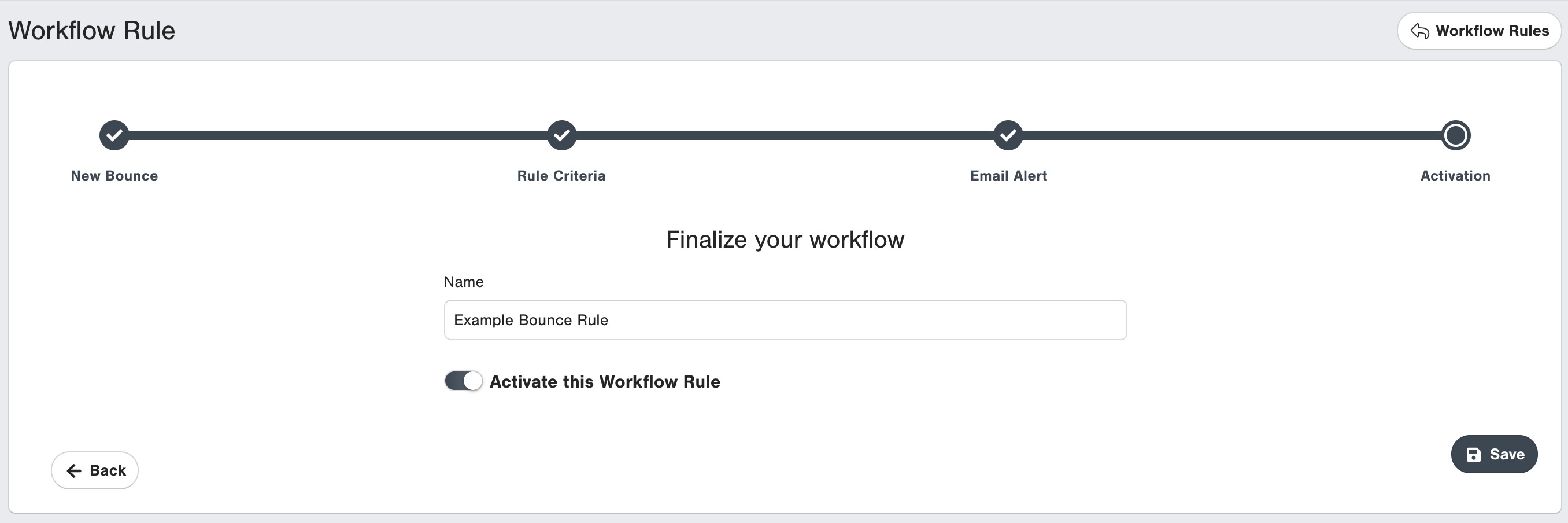
Hit the Save button, and you're all set up!