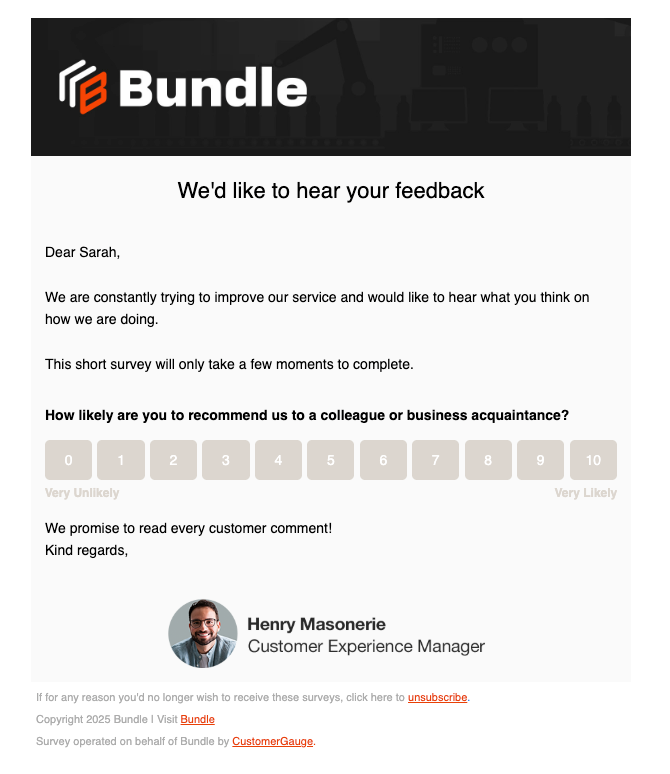
This recipe will guide you through creating and applying well-branded email templates that align with your brand identity. By designing a consistent look for your emails—utilizing logos, colors, and key branding elements—you can improve survey open rates and drive higher response rates. Once you have your template ready, you can easily apply it to any campaign in the Campaign Suite.
Below, you can see how a well-branded email could make a measurable difference in your program's success.
Let's get into how to edit an email template.
Directions
SECTION 1: Preparation
Before starting, we have a few recommendations:
Use your company’s color codes, as you will be able to select specific Hex or RGB codes for buttons, backgrounds, and text.
Header Image/Logo recommended size to use: 600 (l) x 100 (w) pixels
Background image recommended size: 1280 (L) x 800 (W) pixels
File format should be .png or .jpeg
SECTION 2: Where to Find
Navigate to Settings → System Admin → System settings → Survey & Campaigns → Template Style Gallery
You can either decide to create one template and use this consistently across campaigns, or create multiple ones (max 10) for different purposes (if you have multiple brands for example).
SECTION 3: How to add a Template
- To start working on a template you have two choices:
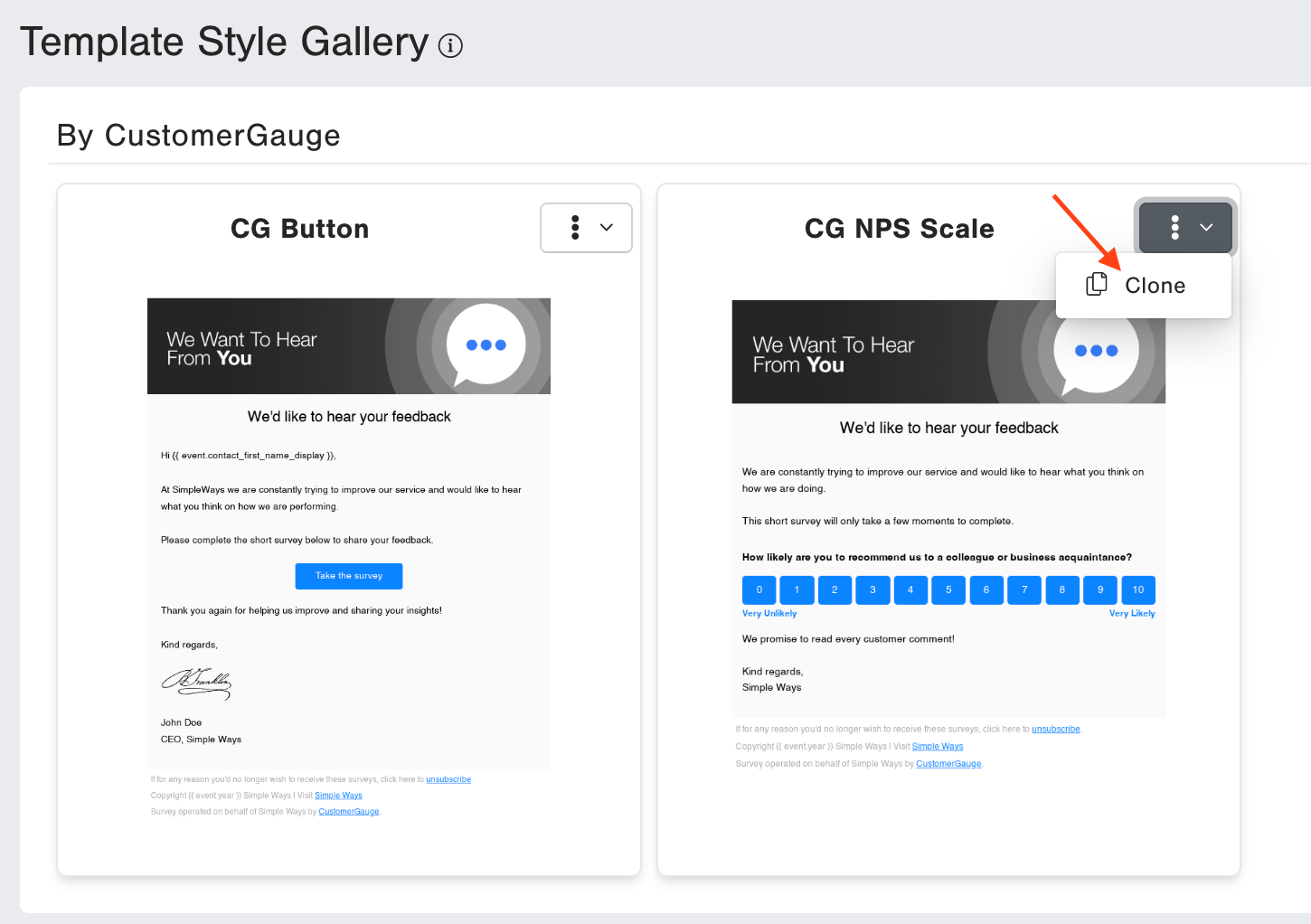
Clone a template from the "By CustomerGauge" section: click in the 3 dots and select clone
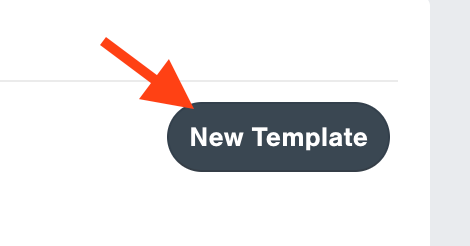
To create a new template click on “New Template” under "My Template Styles".
Re-name your template for easy identification.
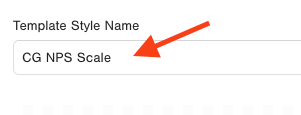
- To start working on a template you have two choices:
SECTION 4: How to Edit
Let’s focus on the main important editable parts of the template:
Header
Company color codes
Text style
Footer
Header (company logo)
Upload your company’s logo from your computer: Click on the existing logo > Upload Image > select the logo
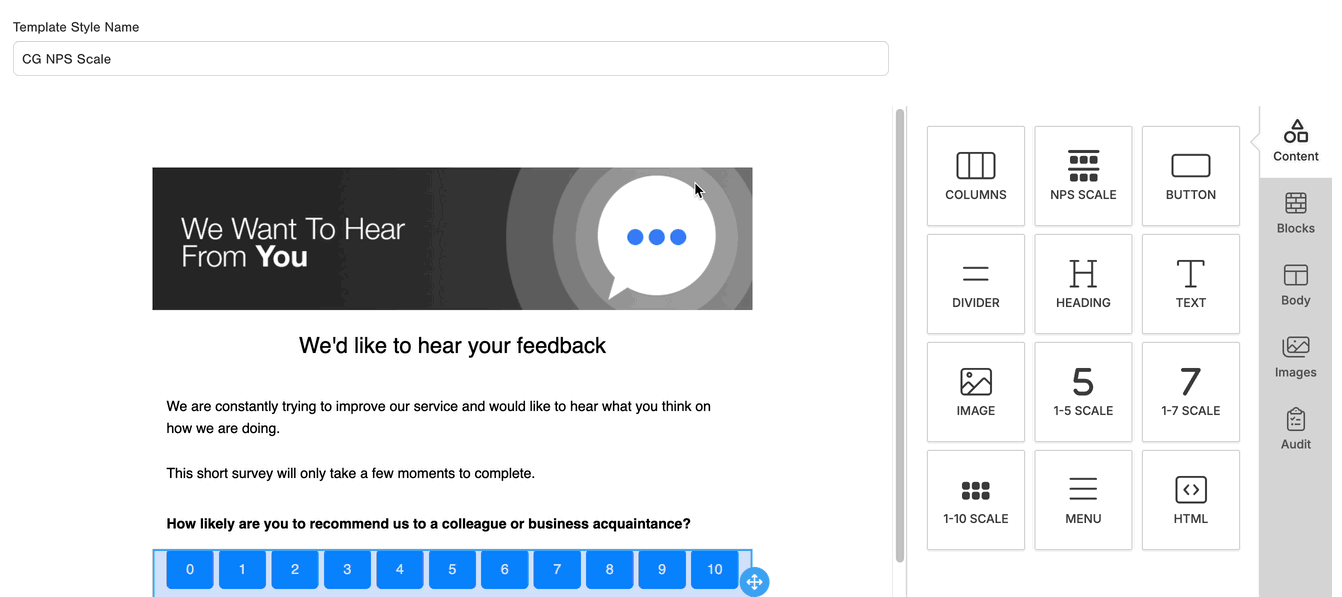
By clicking on the header, under “Content” you can control the Width; Alignment; Alternate Text; Image Link; Padding.
Company color codes
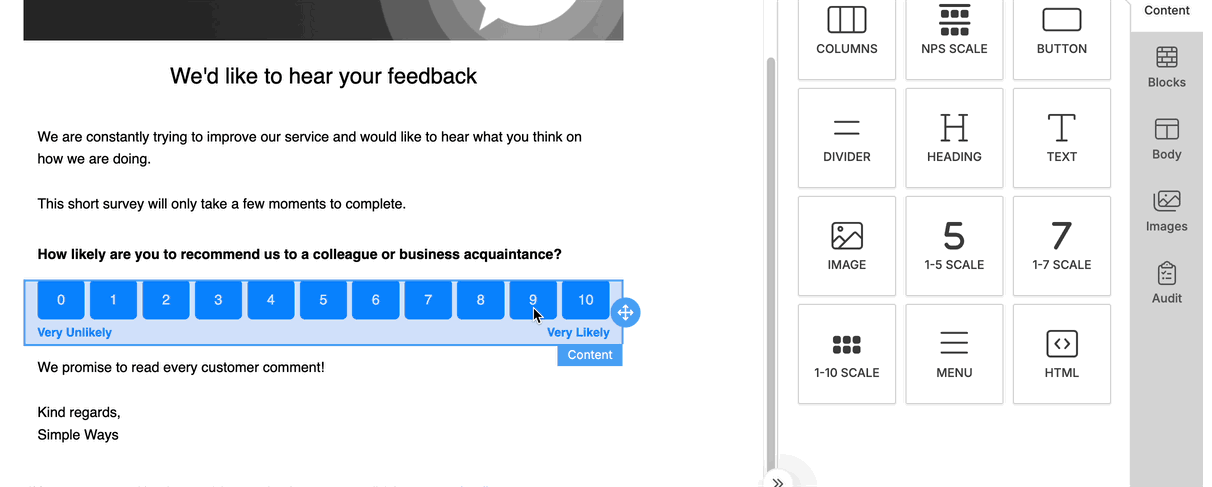
- Here you can select and edit elements of the survey to fit with the color codes of your liking. You can for example edit any scale / button by following these steps: click on the element you want to edit the color of > click on “Scale Button Color” > select the color you want, or use either Hex or RGB codes.
Text style
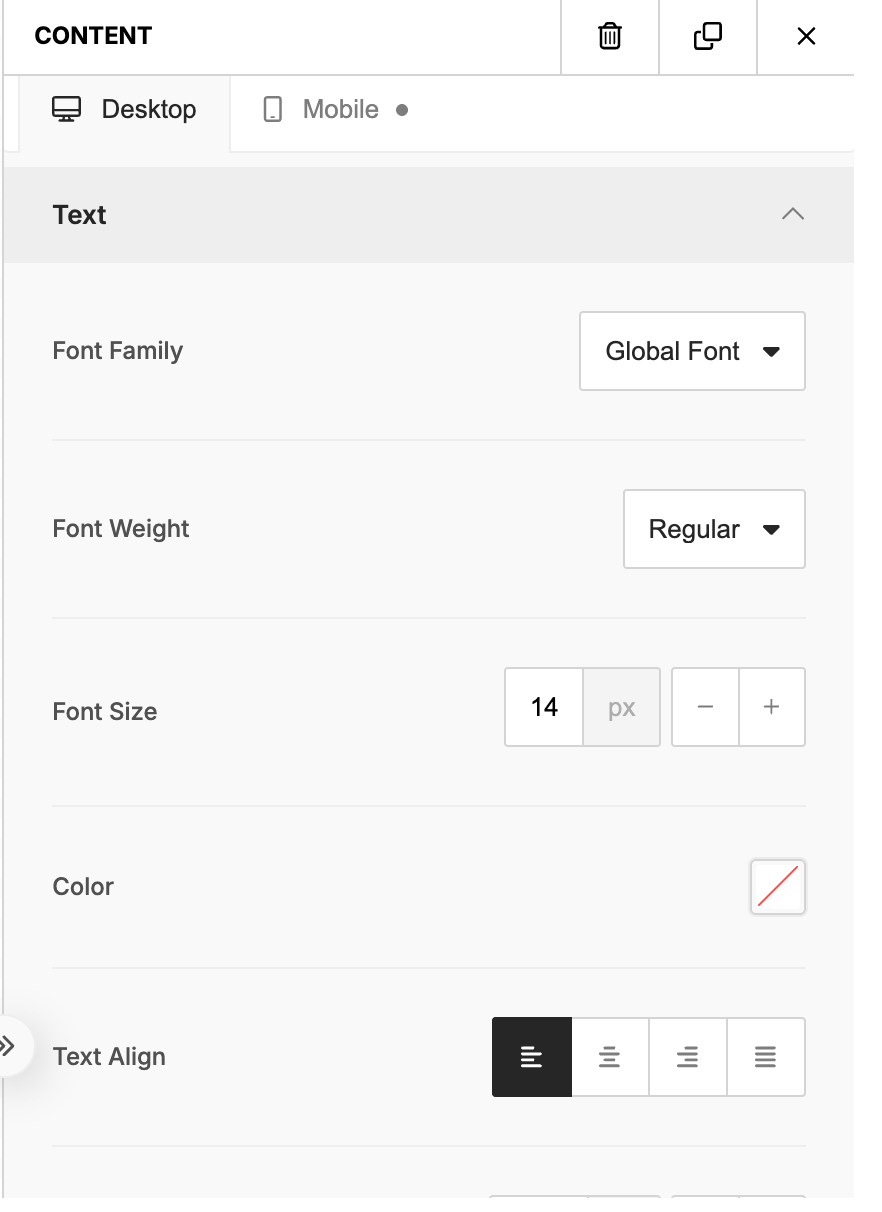
Edit font family, weight and size, color and text alignment
Footer
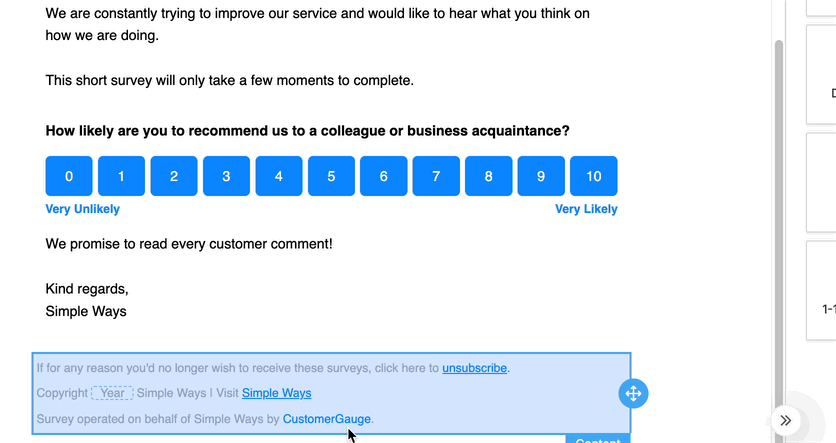
- Add unsubscribe, company website or any links you desire here.
Click on the blue text > click on the Insert/Edit Link button > add an URL.
You can decide if you want the link to open in a new tab or the same tab
SECTION 5: Save your template
Don’t forget to hit “Save” on the bottom right of the template so that all your changes are saved.
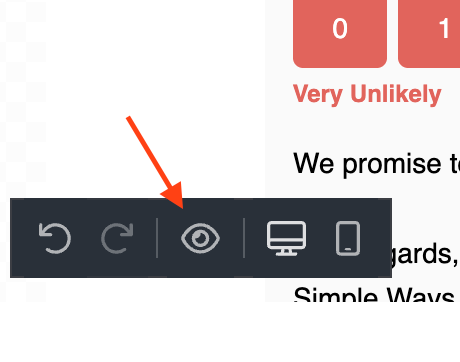
SECTION 6: Preview template
To preview the template you just created click on the “eye” button at the bottom left. You can toggle between Desktop, Tablet, and Mobile view to mimic the responsiveness of your Email template.