
Authentication
There are two steps needed in order to create a Connected App in CustomerGauge
Create a Connected App in Salesforce to generate Client ID and Secret. Step by Step guide here and here.
Under Setup → Apps → App Manager → New Connected App
Enable OAuth Settings
Add all OAuth Scopes to Selected
Enable Client Credentials Flow
After you’ve created the App go back to App Manager, find your App and click View.
In the API (Enable OAuth Settings), click on Manage Consumer Details. Save Consumer Key and Secret somewhere safe, you’ll need it in CustomerGauge
Now go to Connected Apps → Manage Connected Apps
Find your App and click on edit
Add User in the Client Credentials Flow
With the details in hand, in CustomerGauge’s menu go to Integrations → Connected Apps
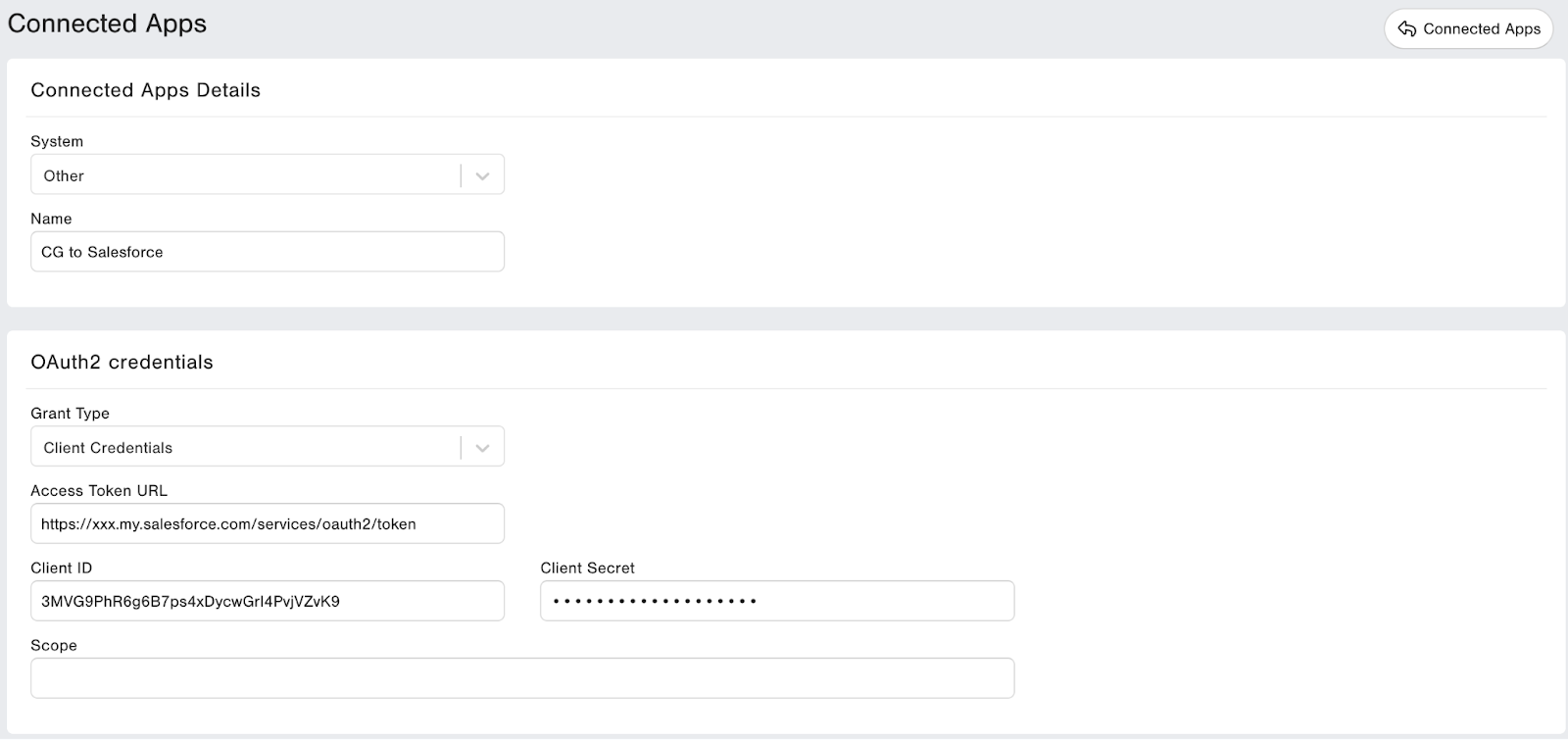
System: Other
Name: Give the name to your Authentication. This App can be reused so give it a good name.
Grant Type: Client Credentials
Access Token URL: https:// yourdomain .my.salesforce.com/services/oauth2/token
Client ID: in Salesforce is Consumer Key
Client Secret: in Salesforce is Consumer Secret
Scope: leave empty